Step 1:
Open RUN Dailogue box by pressing Windows symbol + r or Click start->Run.
Step 2:
Type shell:SendTo.Press Enter/ Click on OK.
Step 3:
Thats all.Now you can add or delete shortcuts to what ever folder you want.
As simple as it is. he he he ...
Try typing shell:StartUp
Tuesday, December 28, 2010

Wednesday, November 24, 2010
Install XP in 10 Minutes
As We all know that During Formatting a Computer After the File Copying is Completed then windows Require 39 Minutes Time. We can bypass this time by a simple trick.
It will just take around 9 minutes and 2 minutes for Tolerance(depends System to system).
Install Windows in 10 mins:-
=======================
1) Wait till the copy part is over, when its over system reboots and the below image will appear.

2) Now As This Image APPEARS You Have to Press "Shift + F10 ". This Will Open The command Prompt. Now type "taskmgr" in it to open the Task manager.
3) After The task Manager Opens go to Processes tab and find "Setup.exe" process and Right CLICK on it and set the Priority to Highest.

4) Now just wait and watch your xp install in 10 mins !
Thursday, October 21, 2010
32 bit/64 bit:How to determine whether a computer is running a 32-bit version or 64-bit version of the Windows operating system
This article describes how to determine whether a computer is running a 32-bit version or 64-bit of the Windows operating system. Generally, a computer's bit count indicates how much data it can process, the speed with which it can process the data, and the maximum memory capacity. In order to optimize the computer's performance, the bit count of the operating system that is installed on the computer should match the bit count of the computer itself.
Windows Vista or Windows 7
If you have Windows Vista or Windows 7, there are two methods to determine whether you are running a 32-bit or a 64-bit version. If one does not work, try the other.Method 1: View System window in Control Panel
- Click Start Collapse this image
 , type system in the Start Search box, and then click system in the Programs list.
 - The operating system is displayed as follows:
- For a 64-bit version operating system: 64-bit Operating System appears for the System type under System.
- For a 32-bit version operating system: 32-bit Operating System appears for the System type under System.
Method 2: View System Information window
- Click Start Collapse this image, type system in the Start Search box, and then click System Information in the Programs list.
- When System Summary is selected in the navigation pane, the operating system is displayed as follows:
- For a 64-bit version operating system: x64-based PC appears for the System type under Item.
- For a 32-bit version operating system: x86-based PC appears for the System type under Item.
Windows XP
If you have Windows XP, there are two methods to determine whether you are running a 32-bit or a 64-bit version. If one does not work, try the other.Method 1: View System Properties in Control Panel
- Click Start, and then click Run.
- Type sysdm.cpl, and then click OK.
- Click the General tab. The operating system is displayed as follows:
- For a 64-bit version operating system: Windows XP Professional x64 Edition Version < Year> appears under System.
- For a 32-bit version operating system: Windows XP Professional Version <Year> appears under System.
Method 2: View System Information window
- Click Start, and then click Run.
- Type winmsd.exe, and then click OK.
- When System Summary is selected in the navigation pane, locate Processor under Item in the details pane. Note the value.
- If the value that corresponds to Processor starts with x86, the computer is running a 32-bit version of Windows.
- If the value that corresponds to Processor starts with ia64 or AMD64, the computer is running a 64-bit version of Windows.
Windows Server 2003
If you have Windows Server 2003, there are two methods to determine whether you are running a 32-bit or a 64-bit version. If one does not work, try the other.Method 1: View System Properties in Control Panel
- Click Start, and then click Run.
- Type sysdm.cpl, and then click OK.
- Click the General tab. The operating system is displayed as follows:
- For a 64-bit version operating system: Windows Server 2003 Enterprise x64 Edition appears under System.
- For a 32-bit version operating system: Windows Server 2003 Enterprise Edition appears under System.
Method 2: View System Information window
- Click Start, and then click Run
- Type winmsd.exe, and then click OK.
- When System Summary is selected in the navigation pane, locate Processor under Item in the details pane. Note the value.
- If the value that corresponds to Processor starts with x86, the computer is running a 32-bit version of Windows.
- If the value that corresponds to Processor starts with EM64T or ia64, the computer is running a 64-bit version of Windows.
Notes
- To find the computer’s bit count, see the documentation that was included with the computer, or contact the hardware manufacturer.
- Intel Itanium-based computers can run only 64-bit versions of Windows. Intel Itanium-based computers cannot run 32-bit versions of Windows. Currently, 64-bit versions of Windows run only on Itanium-based computers and on AMD64-based computers.
Sunday, October 17, 2010
Chuck Norris:Google Funny Search Trick. Try it !!!
Firstly, open your favorite web browser, then go to Google Search homepage, typeGoogle Chuck Norrisinto the middle searchbox then press I’m Feeling Lucky button. Now, let’s see what search result do you get?
Yup, no search results because no standard web pages containing all your search terms were found, due to the fact Google won’t search for Chuck Norris because it knows you don’t find Chuck Norris, he finds you.
Whatever, the actual fact is that you’re been brought to this spoof web pagedirectly, which has the style pretty similar to Google search results page. The funny effect actually existed since more than a year ago. Unfortunately whoever creates the trick can’t manage to trick the term “Chuck Norris” itself on Google.
Google WebP: Free Download To Convert / Reduce Image Sizes (for web pages)
Besides provide fast searching engine to web users, Google has recently announced a new image format that able to significantly reduce the image size and bytes of photos on the web for make the web sites to load faster than before. Named as WebP or pronounced as “weppy”, the WebP is a method of lossy compression which can be used on photographic images. The WebP file consists of VP8 image data and a container based on RIFF.
The WebP uses predictive coding to encode an image, which is based on the same methodology used by the VP8 video codec to compress keyframes in videos. The degree of compression can be adjustable which allow the users to choose the trade-off between filesize and image quality.
The WebP for Linux x64(64-bit) is available for free download from Google Code which includes lightweight decoder for WebP files (libvpx) and a command line tool (webpconv) for converting images to and from the WebP format.
New Nokia Morph Cellphone: Concept Using Nanotechnology, Trend setter
Nokia Research Center (NRC) and the University of Cambridge (UK) have jointly developed the Morph cellphone using nanotechnology, delivering the ultimate functionality including flexible materials, transparent electronics as well as self-cleaning surfaces. It’s the concept phone which has been designed to demonstrate how future mobile devices might be stretchable and flexible.
“We hope that this combination of art and science will showcase the potential of nanoscience to a wider audience. The techniques we are developing might one day mean new possibilities in terms of the design and function of mobile devices,” said Dr. Tapani Ryhanen, Head of the NRC Cambridge UK laboratory, Nokia. “The Research we are carrying out is fundamental to this as we seek a safe and controlled way to develop and use new materials.”
Fantastic Opportunities For The Morph Concept:
- Newly-enabled flexible and transparent materials blend more seamlessly with the way we live
- Devices become self-cleaning and self-preserving
- Transparent electronics offering an entirely new aesthetic dimension
- Built-in solar absorption might charge a device, whilst batteries become smaller, longer lasting and faster to charge
- Integrated sensors might allow us to learn more about the environment around us, empowering us to make better choices
“Developing the Morph concept with Nokia has provided us with a focus that is both artistically inspirational but, more importantly, sets the technology agenda for our joint nanoscience research that will stimulate our future work together,” said Professor Mark Welland, Head of the Department of Engineering’s Nanoscience Group at the University of Cambridge and University Director of Nokia-Cambridge collaboration.
According to the company, “Elements of Morph might be available to integrate into handled devices within 7 years, though initially only at the high-end.”
Watch a demo video of the Morph cellphone concept below.
Sunday, October 10, 2010
10 Things to know about Interview ...simple
 1. Attitude is everything. If you're smiling, excited and optimistic, you've already won half the battle. If you're cold, distant and uninterested, you've already lost 99% of the battle.
2. Be yourself. If you act like someone else and they like you, they don't actually like YOU. They like the person you're pretending to be. If you end up getting a job there, you won't be able to keep up the facade for very long anyway. Honesty and authenticity are very appealing characteristics. If both parties stay true to themselves, they'll know if they're right for each other. And in the end, that's usually what matters most.
3. Relax. Interviews are not really interviews at all. They're conversations. Treat them like conversations, and the tension will slowly dissolve. Remember: when you walk into that office, you don't have the job to begin with. In theory, you have nothing to lose. You either come out way ahead or back where you started. If you approach the situation with a "win-draw" mentality, most of the pressure will fall by the wayside.
4. Appearance counts. Before you meet people, virtually the only judgment you can make is based on aesthetics. What you're wearing matters. What they're wearing matters. How you sit, stand, shake hands, hold your pen and walk up the stairs counts. Not enormously, but enough. First impressions are huge. Also, how does the building look? Is the lobby clean and organized? Are the cubicles bunched together? Is the ceiling high or low? Does it look like a fun place to work? Does it invite you to come back?
5. Fit is crucial. All the smarts, skills and experience in the world mean nothing without the right fit. If your values aren't aligned with those of the company, you're doomed. If you like to have fun and they're always serious, don't even bother. Seriously. The more you fit in, the more you'll want to come back every day and bust your butt. If you're always at odds with your coworkers, you're going to hate your job. Simple as that.
6. Liking means more than talent. The days of standing in line and putting decals on widgets is over. People don't hire you because you're capable. They hire you because they want to work with you. If you don't get along, and get along well, the interview will probably be fruitless. Unless, of course, you applied for the "Assistant Placer of Decals on Widgets" position...
7. Be persistent. It's incredibly easy to get lazy, give up and feel sorry for yourself. People will turn you down, never call you back, and forget your name over and over again. None of that matters. What matters is perseverance. If you can't handle losing a few battles along the way, you're in for a tough road ahead. Getting a job is like winning a war. It takes patience, planning, time, effort, dedication and a little bit of luck. The chips will fall your way sooner or later. If you stay persistent, you'll at least give yourself a chance to catch them.
8. Bring an insane amount of (intelligent) questions. Nothing feels worse that not being prepared. If you don't bring loads of questions, you're not prepared. At some point, the interviewer will ask you what you want to know. For the record, you want to know everything. Be curious. Be interested. Be engrossed. Ask your question, and then get ready to listen. Don't think of what you're going to say next. Just soak up every word like a giant sponge. The more questions you ask, the more you'll get out of the experience. And as a bonus, they'll know you care deeply about their business. When you care about what they care about, you both start to align, and that's when the magic happens.
9. Focus on their needs, not yours. It's tempting to sell ourselves, to talk about how great we are, and to show off our past experiences. But guess what. No one cares. What they really care about is how your "amazingness" will translate into success for their company. Don't focus on your talents, focus on what your talents will do for them.
10. Blogging will give you a HUGE leg up. Blogging forces you to analyze, collaborate and create solutions. It also gives you plenty of ideas for improving customer experiences, businesses and relationships. These skills (among countless others) will give you confidence, poise, energy and know-how when it comes time to explain yourself. Your insights will be sharper, your thinking will be deeper, and your ability to express your opinions clearly and concisely will be much stronger. Blogging will prepare you better than any "How-To" book in the world. Trust me.
These 10 things are just the tip of the iceberg. There is so much more we can learn from each other about this process as a whole, so please feel free to share.
What are your best interviewing tips? What do you wish you would've known? For those of you who've been on both sides of the table, what have you learned from each situation?
Friday, October 8, 2010
Battery Eater Benchmarks Your Battery's Capacity So You Know What to Expect

Battery Eater is a simple program that monitors your battery as it runs out of juice. The default test is a full load test, which will tax your CPU and GPU until the battery dies so you know your absolute minimum battery life. You can also run a "reader test", which merely displays and scrolls through text on your screen until the battery dies, so you know how long your battery will last through more typical use. Obviously, you want to start running the test after your battery has fully charged to get accurate results.
When you plug your computer back in and relaunch Battery Eater, it will display a results graph of the last test, letting you know how long the battery lasted, and what you can generally expect from it in the future. It's a helpful app to try out, albeit shocking if your expectations are significantly different than reality. If you're unhappy with the results, you can always make sure you're doing everything to maximize your laptop's battery life, too.
Battery Eater is a free download for Windows only.
Host A Web Server on Your Home PC
If you want to make small site of your own and don’t want to pay for hosting prices, this article and exactly tell you how to do it.
But if you want to make a website for friends and family this can be a good solution for you . Its a free software so you dont have to pay any money for this.
hosting a web site
on your own pc.Update : Also check out Opera Unite, advanced option to create a web server on home pc.
Below are the steps and small analysis of my experience with this software in just 6 steps. I tested it in Windows XP
, but for Vista and Windows 7 you need to check.
 This helped me a lot to understand how things work for example when my blog is hosted and how do my hosting service works.This was a Small example on low scale basis for you to try and for people who want to run there host on their own system.Do tell me your experience when you try it.I will be glad.
But if you want to make a website for friends and family this can be a good solution for you . Its a free software so you dont have to pay any money for this.
hosting a web site
on your own pc.Update : Also check out Opera Unite, advanced option to create a web server on home pc.

Below are the steps and small analysis of my experience with this software in just 6 steps. I tested it in Windows XP
, but for Vista and Windows 7 you need to check.
Step 1: Download and Run The Software
Download the HFS or Http file server.It is free and open source and above all that it’s a standalone executable that requires no installation.- When you run HFS you might be asked whether or not allow hfs.exe to connect to Internet.Unblock it.
- But if you have 3rd party firewall you will have to configure it accordingly.
Step 2: Configure the port
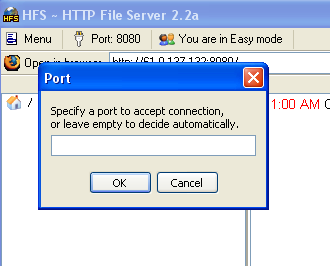
By default HFS uses port 80.if you your firewall is blocking port 80, set HFS to some other port( for example to 8025 or which ever is free, as a precaution keep it above 1024 which is used my operating system itself.)- To change the port number, click on Port Number menu and enter a new one.
- Also, if you are behind a router or firewall, you may in some rare cases, need to set up port forwarding. For all the help required for visit portfrward
- Port-forward can help you out to set up port forwarding.There you can choose the router type and choose a program you want to set up port forwarding for, which is in our case is HFS.
Step 3: Test HFS
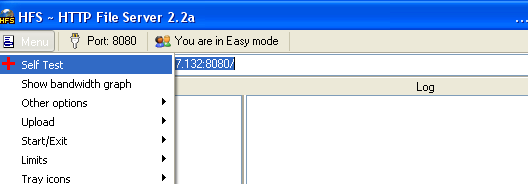
Now you need to test your settings before you start.Click the menu in HFS and choose self test.If the test completes successfully, your settings are correct and you are ready for next step, To point your web browser to your ip address.Step 4: Register A domain
For setting up a web site, you need to first assign it a domain name.Domain name are another name for a computer ip address. For this, you will need to a DNS service running on your computer which can be mapped to particular ip address.- Create a Create a new user at No-IP account.
- Login to the site with the account you created.On the left-sidebar click on “Hosts/Redirects”
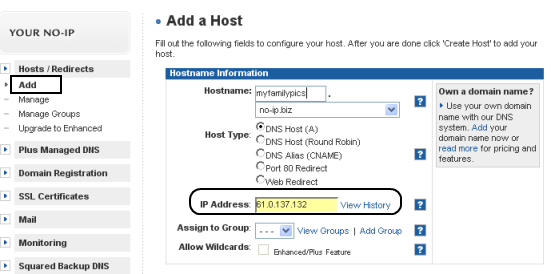
- Click on Add.In the page that opens enter domain name of your choice e.g “myfamilypics” and It will create a sub-domain on its own server that will work on your ip.
- Your IP is recorded when you add the domain name.If you ISP is blocking port 80, you can choose a redirect given under same page.
- Click on “Create host” and you are ready to roll.
- Access the same from your own browser.You can add your file In HFS and access the same.
Step 5. Install The dynamic update Client
Skip this step if yo have a static ip but ff you don’t, you will need a client software to take care of your changing ip address.- Download the No-Ip.com Dynamic DNS update client software.
- Install it and provide your login details.This program will sit in the system tray and automatically update your NoIp account when your external ip changes.
Step 6: Launch Your Website
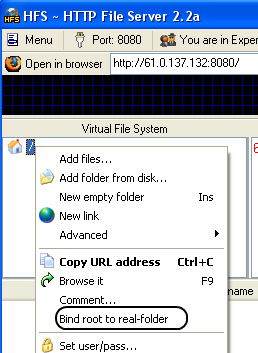
You can now decide what page will appear when someone accesses your site, like the default page. To change the default page,- Open HFS and click on “You are in Easy Mode ” to turn it to advance mode.
- Right click on little house icon on VFS and click on “Bind Root to Real Folder”.
- Now you can add files and folder here which you want to make available in your website.
- Next is when your site is ready send the address which you created in NO-IP or step 4 to all your friends.
- You can even see what others are viewing in advanced mode of hfs
Hide 'User Accounts' from users
Go to Start/Run, and type:
GPEDIT.MSC
Open the path
User Config > Admin Templates > Control Panel
doubleclick "Hide specified Control Panel applets"
put a dot in 'enabled', then click 'Show"
click Add button,
type "nusrmgt.cpl" into the add box
GPEDIT.MSC
Open the path
User Config > Admin Templates > Control Panel
doubleclick "Hide specified Control Panel applets"
put a dot in 'enabled', then click 'Show"
click Add button,
type "nusrmgt.cpl" into the add box
How to Convert FAT to NTFS file system
To convert a FAT partition to NTFS, perform the following steps.
Click Start, click Programs, and then click Command Prompt.
In Windows XP, click Start, click Run, type cmd and then click OK.
At the command prompt, type CONVERT [driveletter]: /FS:NTFS.
Convert.exe will attempt to convert the partition to NTFS.
NOTE: Although the chance of corruption or data loss during the conversion from FAT to NTFS is minimal, it is best to perform a full backup of the data on the drive that it is to be converted prior to executing the convert command. It is also recommended to verify the integrity of the backup before proceeding, as well as to run RDISK and update the emergency repair disk (ERD).
Click Start, click Programs, and then click Command Prompt.
In Windows XP, click Start, click Run, type cmd and then click OK.
At the command prompt, type CONVERT [driveletter]: /FS:NTFS.
Convert.exe will attempt to convert the partition to NTFS.
NOTE: Although the chance of corruption or data loss during the conversion from FAT to NTFS is minimal, it is best to perform a full backup of the data on the drive that it is to be converted prior to executing the convert command. It is also recommended to verify the integrity of the backup before proceeding, as well as to run RDISK and update the emergency repair disk (ERD).
How to use Windows Update Properly
If you want to save your files to your hard drive, so after a format you dont have to download them all again, here's How:
- Logon to Windows Update
- Choose Windows Update Catalogue (left hand pane)
- Choose Find updates for Microsoft Windows operating systems (right hand pane)
- Choose your version and language then Search
- Choose one the following:
- Critical Updates and Service Packs
- Service Packs and Recommended Downloads
- Multi-Language Features (0)
- Once chosen simply click on what you want to download and then back at the top click Review Download Basket
- You are taken to the next page where at the top you can specify where the downloads are to be saved.
- Click Download now. Each patch will make a directory under the root of the folder you saved them to.
Once finished you need to go to where you saved the file (s) to and then simply install all your patches.
- Logon to Windows Update
- Choose Windows Update Catalogue (left hand pane)
- Choose Find updates for Microsoft Windows operating systems (right hand pane)
- Choose your version and language then Search
- Choose one the following:
- Critical Updates and Service Packs
- Service Packs and Recommended Downloads
- Multi-Language Features (0)
- Once chosen simply click on what you want to download and then back at the top click Review Download Basket
- You are taken to the next page where at the top you can specify where the downloads are to be saved.
- Click Download now. Each patch will make a directory under the root of the folder you saved them to.
Once finished you need to go to where you saved the file (s) to and then simply install all your patches.
Remove the Recycle Bin from the Desktop
If you don't use the Recycle Bin to store deleted files , you can get rid of its desktop icon all together.
Run Regedit and go to:
HKEY_LOCAL_MACHINE/SOFTWARE/Microsoft/Windows/CurrentVersion/explorer/Desktop/NameSpace
Click on the "Recycle Bin" string in the right hand pane. Hit Del, click OK.
Run Regedit and go to:
HKEY_LOCAL_MACHINE/SOFTWARE/Microsoft/Windows/CurrentVersion/explorer/Desktop/NameSpace
Click on the "Recycle Bin" string in the right hand pane. Hit Del, click OK.
Set Processes Priority
Follow this tip to increase the priority of active processes, this will result in prioritisation of processes using the CPU.
CTRL-SHIFT-ESC
1.Go to the second tab called Processes, right click on one of the active processes, you will see the Set Priority option
2.For example, your Run your CDwriter program , set the priority higher, and guess what, no crashed CD’s
CTRL-SHIFT-ESC
1.Go to the second tab called Processes, right click on one of the active processes, you will see the Set Priority option
2.For example, your Run your CDwriter program , set the priority higher, and guess what, no crashed CD’s
How to edit Host File Windows 7
 The host file in windows is a file that maps host names to IP Address. This works much like a simple DNS, however only one Host Name can go to one IP Address. This can be useful in many situations, for example if you are setting up a small office and don’t have the resources for a DNS you could set-up a host file to resolve internal Host Names for you.
Back in the days of Windows XP and NT all you had to do was open you host file and edit the data. But when windows Vista and 7 came along things became a bit more complicated as you have to open as administrator, so what if your not logged in as an administrator?
Well you first need to open Notepad as an administrator, to do this find notepad on your start bar, then right click, Open as Administrator:

You will then be asked if you “Want the following program to make changes to the computer“, click yes. Now this will load Notepad with full administrator rights, allowing it to open system files. You now need to click File>Open then navigate to C:\Windows\System32\drivers\etc\hosts:

Now you will be able to edit your host file. You should leave anything already in your host file as it is, unless it is obliviously linked to a mallware. To add an entry you first need to enter the IP Address and then the host name, so on my network I have an Intranet server running on the address 192.168.0.101, so I type this address into the host file, then press TAB then type the host name. Now when I want to see my Intranet server I only need to type in companyweb, much easier to remember then 192.168.0.101. One you have finised editing the host file just click file>save then close notepad to finish.
Twitter---Track Your Computer Activity
There is no doubt that twitter is best social media service. More than that there is one more unique thing you can do with twitter and that is to track you computer when you are away.

Weird things can happen anytime to your computer when you are away from it. Especially when your friends, brother, sister or any other family member who use your computers. They may use an important applications. So, here is interesting thing that you can do with your computer when you are away from it.
At this point you need to track your computer and check out what are happening to your computer. Yes, track your computer with two application TweetMyApps and TweetMyPC. Just create a new twitter account and make both application tweets for this new account automatically. Both application runs on system tray. You can do more tweak with both application. You can hide them from system tray using another cool tools called TrayIt. Doing this will show you are enough clever to track any activities of your friends and families.
Now the application start tweeting your computer usage along with the time. If you are unsure about any tweeted command then you can send a special tweet which lets TweetMyPC to take screenshot of your desktop. You can also shut down or lock your PC by sending their respective commands, thus having complete control over your system.
Using both TweetMyApps and TweetMyPC together can give you full control over your computer from virtually anywhere.
Enjoy!
Weird things can happen anytime to your computer when you are away from it. Especially when your friends, brother, sister or any other family member who use your computers. They may use an important applications. So, here is interesting thing that you can do with your computer when you are away from it.
At this point you need to track your computer and check out what are happening to your computer. Yes, track your computer with two application TweetMyApps and TweetMyPC. Just create a new twitter account and make both application tweets for this new account automatically. Both application runs on system tray. You can do more tweak with both application. You can hide them from system tray using another cool tools called TrayIt. Doing this will show you are enough clever to track any activities of your friends and families.
Now the application start tweeting your computer usage along with the time. If you are unsure about any tweeted command then you can send a special tweet which lets TweetMyPC to take screenshot of your desktop. You can also shut down or lock your PC by sending their respective commands, thus having complete control over your system.
Using both TweetMyApps and TweetMyPC together can give you full control over your computer from virtually anywhere.
Enjoy!
ip address
An IP address always consists of 4 numbers separated by periods, with the numbers having a possible range of 0 through 255. An example of how an IP address appears is: 192.168.1.10
This representation of an IP address is called decimal notation and is what is generally used by humans to refer to an IP address for readability purposes. With the ranges for each number being between 0 and 255 there are a total 4,294,967,296 possible IP addresses.
Out of these addresses there are 3 special ranged that are reserved for special purposes. The first is the 0.0.0.0 address and refers to the default network and the 255.255.255.255 address which is called the broadcast address. These addresses are used for routing, which will not be covered in this tutorial. The third address, 127.0.0.1, is the loopback address, and refers to your machine. Whenever you see, 127.0.0.1, you are actually referring to your own machine. That means if you clicked on this link, http://127.0.0.1, you are actually trying to connect to your own computer, and unless you have a web server running, you will get a connection error.
There are some guidelines to to how IP address can appear, though. The four numbers must be between 0 and 255, and the IP address of 0.0.0.0 and 255.255.255.255 are reserved, and are not considered usable IP addresses. IP addresses must be unique for each computer connected to a network. That means that if you have two computers on your network, each must have a different IP address to be able to communicate with each other. If by accident the same IP address is assigned to two computers, then those computers would have what is called an "IP Conflict" and not be able to communicate with each other.
IP address classes
These IP addresses can further be broken down into classes. These classes are A, B, C, D, E and their possible ranges can be seen in Figure 2 below.
Figure 2. IP address Classes
This representation of an IP address is called decimal notation and is what is generally used by humans to refer to an IP address for readability purposes. With the ranges for each number being between 0 and 255 there are a total 4,294,967,296 possible IP addresses.
Out of these addresses there are 3 special ranged that are reserved for special purposes. The first is the 0.0.0.0 address and refers to the default network and the 255.255.255.255 address which is called the broadcast address. These addresses are used for routing, which will not be covered in this tutorial. The third address, 127.0.0.1, is the loopback address, and refers to your machine. Whenever you see, 127.0.0.1, you are actually referring to your own machine. That means if you clicked on this link, http://127.0.0.1, you are actually trying to connect to your own computer, and unless you have a web server running, you will get a connection error.
There are some guidelines to to how IP address can appear, though. The four numbers must be between 0 and 255, and the IP address of 0.0.0.0 and 255.255.255.255 are reserved, and are not considered usable IP addresses. IP addresses must be unique for each computer connected to a network. That means that if you have two computers on your network, each must have a different IP address to be able to communicate with each other. If by accident the same IP address is assigned to two computers, then those computers would have what is called an "IP Conflict" and not be able to communicate with each other.
IP address classes
These IP addresses can further be broken down into classes. These classes are A, B, C, D, E and their possible ranges can be seen in Figure 2 below.
| Class | Start address | Finish address |
| A | 0.0.0.0 | 126.255.255.255 |
| B | 128.0.0.0 | 191.255.255.255 |
| C | 192.0.0.0 | 223.255.255.255 |
| D | 224.0.0.0 | 239.255.255.255 |
| E | 240.0.0.0 | 255.255.255.255 |
If you look at the table you may notice something strange. The range of IP address from Class A to Class B skips the 127.0.0.0-127.255.255.255 range. That is because this range is reserved for the special addresses called Loopback addresses that have already been discussed above.
The rest of classes are allocated to companies and organizations based upon the amount of IP addresses that they may need. Listed below are descriptions of the IP classes and the organizations that will typically receive that type of allocation.
Default Network: The special network 0.0.0.0 is generally used for routing.
Class A: From the table above you see that there are 126 class A networks. These networks consist of 16,777,214 possible IP addresses that can be assigned to devices and computers. This type of allocation is generally given to very large networks such as multi-national companies.
Loopback: This is the special 127.0.0.0 network that is reserved as a loopback to your own computer. These addresses are used for testing and debugging of your programs or hardware.
Class B: This class consists of 16,384 individual networks, each allocation consisting of 65,534 possible IP addresses. These blocks are generally allocated to Internet Service Providers and large networks, like a college or major hospital.
Class C: There is a total of 2,097,152 Class C networks available, with each network consisting of 255 individual IP addresses. This type of class is generally given to small to mid-sized companies.
Class D: The IP addresses in this class are reserved for a service called Multicast.
Class E: The IP addresses in this class are reserved for experimental use.
Broadcast: This is the special network of 255.255.255.255, and is used for broadcasting messages to the entire network that your computer resides on.
Private Addresses
There are also blocks of IP addresses that are set aside for internal private use for computers not directly connected to the Internet. These IP addresses are not supposed to be routed through the Internet, and most service providers will block the attempt to do so. These IP addresses are used for internal use by company or home networks that need to use TCP/IP but do not want to be directly visible on the Internet. These IP ranges are:
Class | Private Start Address | Private End Address |
A | 10.0.0.0 | 10.255.255.255 |
B | 172.16.0.0 | 172.31.255.255 |
C | 192.168.0.0 | 192.168.255.255 |
If you are on a home/office private network and want to use TCP/IP, you should assign your computers/devices IP addresses from one of these three ranges. That way your router/firewall would be the only device with a true IP address which makes your network more secure.
Common Problems and Resolutions
The most common problem people have is by accident assigning an IP address to a device on your network that is already assigned to another device. When this happens, the other computers will not know which device should get the information, and you can experience erratic behavior. On most operating systems and devices, if there are two devices on the local network that have the same IP address, it will generally give you a "IP Conflict" warning. If you see this warning, that means that the device giving the warning, detected another device on the network using the same address.
The best solution to avoid a problem like this is to use a service called DHCP that almost all home routers provide. DHCP, or Dynamic Host Configuration Protocol, is a service that assigns addresses to devices and computers. You tell the DHCP server what range of IP addresses you would like it to assign, and then the DHCP server takes the responsibility of assigning those IP addresses to the various devices and keeping track so those IP addresses are assigned only once.
Tuesday, September 28, 2010
Record Movies of Video Games on the Computer
 you can record online Flash games or DOS games using any screencasting software, the situation gets a bit tricky when playing computer games that use DirectX 3D or OpenGL because they render only a blank footage with regular screen capture programs.
Fortunately, here are some good in-game video recording software that will record motion video in the background while you are playing your favorite PC game. Most of them support still image captures as well:
 1. WeGame.com - Though this is a place for uploading screencasts of video games but they also provide a free Windows software for recording games on the computer. Just start the software, launch your game and hit record.
 Wegame is absolutely free and supports Halo, World of Warcraft, Ages of Empire, Half Life, Grand Theft Auto, Wolfenstein, America’s Army and most other popular games.
 2. FRAPS – This is probably the best option for recording movies of video game but costs a few bucks. FRAPS saves the video game into AVI format so the recording is smooth as the movie is not getting compressed at the time of recording. You can reduce the video size with VirtualDub or Windows Media Encoder before uploading to YouTube.
FRAPS can record still screenshots or full game movies. Just press F9 to start or pause the recording. You also FRAPS to record Google Earth movies like the one here. The free version will however add a watermark to your game movies.
 3. Taksi – Taksi is game recording software similar to FRAPS but it is open source and free. Taksi can capture game screenshots or video clips of running games but without audio.
Taksi also lets you capture gaming sessions in full screen mode with hotkeys.
4. Game Cam – This is another free software for making movies of your favorite games on Windows. It will automatically search for games installed on your computer and will create an individual recording profile of every game. Game Cam can capture game screen shots, videos in AVI as well as audio.
Tips for Recording Computer Games
Recording games will slow down your computer so try to record at a lower frame rate and stop all non-essential processes like spyware, anti-virus and other running software. Also consider lowering the desktop screen resolution for smooth recordings of game videos.
YouTube will resize videos to 320×240 so maintain the same 4:3 aspect ratio of the game screen before hitting the record button.
Finally, if you have to capture only a small duration video clip or just a quick game screenshot, SnagIT will do the trick since it supports DirectX input. You may have to turn off hardware acceleration during the recording process.
Google Docs: To Compare Two Text Files Online
 WinMerge, Beyond Compare, ExamDiff and Altova Diffdog are some popular utilities that help you visually compare differences in two files but a problem with these software is that they work only on the desktop.
Since there are no online file comparison services available yet, we can use our favorite Google Docs to locate differences between two text files or files that contain programming source code.
Here are the step involved for comparing two files with Google Docs:
Step 1. Create a new document in Google Docs and paste the contents of the first text file into this document. Save.
Step 2. Open your second text file in notepad and copy its content to the clipboard. Now open the Google Document created in Step 1 and overwrite everything with content from the clipboard. Save.
Step 3. Go to the Revision tab of Google Docs, select the two file versions and click "Compare Checked". You should see the differences highlighted on the next screen as shown below.

The highlighting may not be as good as the desktop counterparts but still handy. And this Google Docs file comparison trick will work best in situations when you have to compare two text files that contain only minor variations.
Take Your Files Wherever You Go!! Easily....very useful!!!
There are so many ways by which you can remotely access your computer files over the Internet but the service that I am currently in love with is ZumoCast – simple, elegant and it’s free to use without any limitations.
With ZumoCast installed, you don’t ever have to upload your desktop files to the cloud but you’ll still be able to access them from other computers or your iOS devices.
To get started, just install the ZumoCast client on your Windows or Mac computer and select the folders on your desktop that you would like to access remotely. That’s it!
Now open the ZumoCast website on any other computer, log into your account and you’ll have immediate access to all your files and folders. The only condition is that your original computer, where the files are physically stored, should be on and connected to the Internet.

Other than accessing files from a remote computer, you may also use ZumoCast to upload new files from your current (remote) computer to the original computer via the browser.
iPhone and and iPad users may download the native ZumoCast app on their devices as it offers an even better experience and can transcode videos on the fly – that means if you have video on your computer in the format that’s not supported by the iPhone, you can still play it via live streaming.
An Android version of ZumoCast is in the works as well.
ZumoCast
With ZumoCast installed, you don’t ever have to upload your desktop files to the cloud but you’ll still be able to access them from other computers or your iOS devices.
To get started, just install the ZumoCast client on your Windows or Mac computer and select the folders on your desktop that you would like to access remotely. That’s it!
Now open the ZumoCast website on any other computer, log into your account and you’ll have immediate access to all your files and folders. The only condition is that your original computer, where the files are physically stored, should be on and connected to the Internet.
Other than accessing files from a remote computer, you may also use ZumoCast to upload new files from your current (remote) computer to the original computer via the browser.
iPhone and and iPad users may download the native ZumoCast app on their devices as it offers an even better experience and can transcode videos on the fly – that means if you have video on your computer in the format that’s not supported by the iPhone, you can still play it via live streaming.
An Android version of ZumoCast is in the works as well.
ZumoCast
FilerFrog:Useful menu context

Want a way to put dozens of handy commands within two-click reach? Download FilerFrog and bolt it on to your context menu, and you'll have a wide array of new tools available via your right mouse button as you browse your files and folders in Explorer.
Unlike some context menu multi-tools, FilerFrog installs only a single item on the top level of the context menu -- everything else is tucked neatly into submenus. So what can FillerFrog do?
Unlike some context menu multi-tools, FilerFrog installs only a single item on the top level of the context menu -- everything else is tucked neatly into submenus. So what can FillerFrog do?
- print directory contents
- extract, split, and join files
- move files up one level or to a recently accessed folder
- copy the current path to the clipboard
- resize images and swap formats
- encrypt and decrypt files
- quickly jump to favorite folders
- perform bulk file renames
FilerFrog installers are available for both 32 and 64-bit Windows versions of Windows XP, Vista, and Windows 7.
Download FilerFrog
Send to: Free app to and remove entries from your Send To menu

The Windows Send To menu can be incredibly useful. I most often use it to zap files to a USB flash drive, but it's also handy for emailing files and quickly burning files to CD (say, when I'm helping the RCMP retrieve video footage from surveillance DVRs).
Still, it could be more useful if I was able to remove a few items and add some additional folder locations. Send To Toys is up to the task. Once installed, you can configure entries via the STT's control panel applet. Use it to add additional folder locations, remove unwanted entries (Fax recipient? Gone!), and configure folder and clipboard Send To options.
Send To Toys can also handle a default email recipient (and CC and BCC) and prefill both the subject and message body.
Be sure to pay attention during the install process -- by default, STT adds a number of entries to the Send To menu. You can, of course, always remove them later using the app itself!
Still, it could be more useful if I was able to remove a few items and add some additional folder locations. Send To Toys is up to the task. Once installed, you can configure entries via the STT's control panel applet. Use it to add additional folder locations, remove unwanted entries (Fax recipient? Gone!), and configure folder and clipboard Send To options.
Send To Toys can also handle a default email recipient (and CC and BCC) and prefill both the subject and message body.
Be sure to pay attention during the install process -- by default, STT adds a number of entries to the Send To menu. You can, of course, always remove them later using the app itself!
Second shell:windows enhancement

First, you can resize windows by holding down Alt+Right click and dragging the mouse anywhere in the window. Alt+Left click moves the window. By Odin's beard, how frickin' awesome is that?! Ctrl+Alt+Arrow key maximizes your window either horizontally or vertically, and Ctrl+Alt+Numpad 1-9 moves the window into the respective corner of your screen. There's a bunch of other keyboard shortcuts, too (but Windows 7 already has most of them built-in, I think).
Netbook and laptop users: if the resize-anywhere bit wasn't enough to get you excited, you can also remap Caps Lock to act as a Middle Mouse button! No longer will it be a struggle to open links in new tabs! It should be noted that Caps Lock remapping (and some other advanced features) will require some .INI file hacking -- the FAQ should have you covered, if you've never done that before, though.
SecondShell is one of those tiny little utilities that you simply must try; it's fast, flawless, and completely portable. It's also Windows-only, I'm afraid.
Download
Make Multiple Wikipedia Articles to a Single PDF without any tools
Do you know that you can directly save any Wikipedia page as a PDF file without requiring any extensions or print drivers. In fact, you can even collect multiple Wikipedia pages in a basket and convert them all to a single PDF document (just like an ebook) with just a few mouse clicks.
For instance, here’s a PDF book on search engines (PDF) that was created from a set of Wikipedia pages using the built-in tools of Wikipedia and nothing else. As you will soon notice, PDF books generated by Wikipedia are perfectly formatted for printing and they even include all references and citations that are found in the original Wikipedia articles.
Download Wikipedia Pages as PDFs
1. Start the book creator tool inside Wikipedia.
2. Now open any Wikipedia page that you would like to include in your PDF book and click the “Add this page to your book” link. Repeat this step until all the pages have been added to the print basket.
3. Once you are done collecting Wikipedia articles, click “Show Book”, give your Wikipedia book a title and hit the download button to save your book as a PDF file.
All PDF books created with Wikipedia are available under the Creative Commons License.
And if you have no plans of printing Wikipedia pages, you may still use this trick to quickly download multiple pages from the world’s largest encyclopedia and read them offline on your mobile phone or your iPad.
Wikipedia will store your books collection under your Wikipedia user directory.
If you are not happy with the layout of your PDF book or would like to add some more information to the PDF, just edit the template and save the PDF.
Surf the Web Faster on Slow Internet
If your current Internet speed is very slow and you are living in an area where broadband connections are still not available, here are some ideas to help you download web pages faster on your computer. You may use the same tips to improve your web browsing experience on a sluggish USB modem.
2. Increase the size of your browser cache. If the static parts of a site (like background graphics, CSS, etc) are stored in the local cache, your browser can safely skip downloading these files when you re-visit the site in future thus improving speed.
3. Sometimes the slow DNS server of your ISP can be a bottleneck so switch to OpenDNS as it can resolve website URLs into IP addresses more quickly. If you aren’t too happy about OpenDNS redirecting your Google queries, follow this simple hack.
4. Finch can serve a light-weight version of any website in real-time that is free of all bells and whistles. For instance, the New York Times homepage with all external resources can weigh more than a MB but Finch trims down the size by 90% so the site loads more quickly on a slow web connection.
5. Flinch (mentioned at #4) is good for reading regular websites but if you just need to check the latest articles published on your favorite blogs, use BareSite. This service will automatically detect the associated feed of a website and render content quickly inside a minimalist interface.
6. The Google Transcoder service at google.com/gwt/n can split large web pages into smaller chunks that will download more quickly on your computer (or mobile phone).
7. Monitor your Internet speed to determine hours when you get the maximum download speed from the ISP. Maybe you can then change your surfing schedule a bit and browse more during these "off peak" hours.
8. You can use a text browser like Lynx or Elinks for even faster browsing. It downloads only the HTML version of web pages thus reducing the overall bandwidth required to render websites.
9. When searching for web pages on Google, you can click the "Cache" link to view the text version of a web page stored in the Google Cache. Alternatively, install this GM script as it adds a "cached text only" link near every "Cached" link on Google Search pages.
10. Move your web activities offline as far as possible. You can send & receive emails, write blogs and even read feeds in an offline environment. Also see: Save Web Pages for offline reading.
11. You can interact with websites like Flickr, Google Docs, Slideshare, etc. using simple email messages. Uploading a new document to Google Docs via email would require less bandwidth than doing it in the browser because you are avoiding a trip to the Google Docs website.
12. Applying the same logic, you may also consider using tools like Web In Mail or Email The Web as they help you browse websites via email. Just put the URL of a page (e.g., cnn.com) in the subject field of your email message and these services will send you the actual page in the reply.
13. Bookmarklets are like shortcuts to your favorite web services. You neither have to open the Gmail Inbox for composing a new email message nor do you have to visit Google Translate for translating a paragraph of text. Add relevant bookmarklets to your browser bar and reduce the number of steps required to accomplish a task.
14. Use the netstat command to determine processes, other than web browsers, that may be secretly connecting to Internet in the background. Some of these processes could be consuming precious bandwidth but you can block them using the Firewall.
15. Use URL Snooper to determine non-essential host names that a website is trying to connect while downloading a web page. You may block them in future via the hosts file or use Adblock Plus to filter out advertising banners on web pages.
16. If you don’t want to spoil your web surfing experience by stripping images and other graphic elements from a web page, get Opera Turbo. It will first fetch the requested web page on to its own server and then send it to your machine in a compressed format. Opera Turbo won’t change the layout of a web site but can lower the image resolution so that they load faster on slow Internet.
17. Change the user agent of your desktop browser to that of a mobile phone like Apple’s iPhone or Windows Mobile. This will help you browse certain web sites like Google News, WSJ, etc. much faster because they’ll serve you a light-weight and less cluttered mobile version of their sites thinking you’re on a mobile phone.
Surf the Web Faster on Slow Internet
1. Turn off web images, the Adobe Flash plug-in, Java Applets and JavaScript from your browser settings as these files are often the bulkiest elements of any web page.2. Increase the size of your browser cache. If the static parts of a site (like background graphics, CSS, etc) are stored in the local cache, your browser can safely skip downloading these files when you re-visit the site in future thus improving speed.
3. Sometimes the slow DNS server of your ISP can be a bottleneck so switch to OpenDNS as it can resolve website URLs into IP addresses more quickly. If you aren’t too happy about OpenDNS redirecting your Google queries, follow this simple hack.
4. Finch can serve a light-weight version of any website in real-time that is free of all bells and whistles. For instance, the New York Times homepage with all external resources can weigh more than a MB but Finch trims down the size by 90% so the site loads more quickly on a slow web connection.
5. Flinch (mentioned at #4) is good for reading regular websites but if you just need to check the latest articles published on your favorite blogs, use BareSite. This service will automatically detect the associated feed of a website and render content quickly inside a minimalist interface.
6. The Google Transcoder service at google.com/gwt/n can split large web pages into smaller chunks that will download more quickly on your computer (or mobile phone).
7. Monitor your Internet speed to determine hours when you get the maximum download speed from the ISP. Maybe you can then change your surfing schedule a bit and browse more during these "off peak" hours.
8. You can use a text browser like Lynx or Elinks for even faster browsing. It downloads only the HTML version of web pages thus reducing the overall bandwidth required to render websites.
9. When searching for web pages on Google, you can click the "Cache" link to view the text version of a web page stored in the Google Cache. Alternatively, install this GM script as it adds a "cached text only" link near every "Cached" link on Google Search pages.
10. Move your web activities offline as far as possible. You can send & receive emails, write blogs and even read feeds in an offline environment. Also see: Save Web Pages for offline reading.
11. You can interact with websites like Flickr, Google Docs, Slideshare, etc. using simple email messages. Uploading a new document to Google Docs via email would require less bandwidth than doing it in the browser because you are avoiding a trip to the Google Docs website.
12. Applying the same logic, you may also consider using tools like Web In Mail or Email The Web as they help you browse websites via email. Just put the URL of a page (e.g., cnn.com) in the subject field of your email message and these services will send you the actual page in the reply.
13. Bookmarklets are like shortcuts to your favorite web services. You neither have to open the Gmail Inbox for composing a new email message nor do you have to visit Google Translate for translating a paragraph of text. Add relevant bookmarklets to your browser bar and reduce the number of steps required to accomplish a task.
14. Use the netstat command to determine processes, other than web browsers, that may be secretly connecting to Internet in the background. Some of these processes could be consuming precious bandwidth but you can block them using the Firewall.
15. Use URL Snooper to determine non-essential host names that a website is trying to connect while downloading a web page. You may block them in future via the hosts file or use Adblock Plus to filter out advertising banners on web pages.
16. If you don’t want to spoil your web surfing experience by stripping images and other graphic elements from a web page, get Opera Turbo. It will first fetch the requested web page on to its own server and then send it to your machine in a compressed format. Opera Turbo won’t change the layout of a web site but can lower the image resolution so that they load faster on slow Internet.
17. Change the user agent of your desktop browser to that of a mobile phone like Apple’s iPhone or Windows Mobile. This will help you browse certain web sites like Google News, WSJ, etc. much faster because they’ll serve you a light-weight and less cluttered mobile version of their sites thinking you’re on a mobile phone.
Find the Person Behind an Email Address
You get an email from a person with whom you have never interacted before and therefore, before you reply to that message, you would like to know something more about him or her. How do you do this without directly asking the other person?
Web search engines are obviously the most popular place for performing reverse email lookups but if the person you’re trying to research doesn’t have a website or has never interacted with his email address on public forums before, Google will probably be of little help.
No worries, here are few tips and online services that may still help you uncover the identity of that unknown email sender.
#1. Find the sender’s location

Open the header of the email message and look for lines that say “Received: from” followed by an IP address in square brackets. If there are multiple entries, use the IP address mentioned in the last entry.
Now paste the IP address in this trace route tool and you should get a fairly good idea about the location of the email sender.
#2. Reverse email search with Facebook

Facebook has 450 million users worldwide and there’s a high probability that the sender may also have a profile on Facebook.
Unlike LinkedIn and most other social networks, Facebook lets you search users by email address so that should make your job simpler. Just paste the email address of the sender into the Facebook search box and you’ll immediately know if a matching profile exists in the network.
If you are able to locate that person on Facebook, download his profile picture and then upload it to TinEye – it’s a reverse image search engine so you can locate his other social profiles where he may have used the same picture.
#3. Check all the other Social Networks

You can use a service like Knowem to quickly determine if a profile with a particular username exists in any of the social networks.
If the email address of the send is something like green_peas@hotmail.com, there’s a probably that he or she may have created accounts of some other social network using the same alias “green_peas” – put that in knowem.com to confirm.
#4. People Search

Finally, if nothing works, you should try a people search service like Pipl and Spokeo – both services let you perform reverse email lookups but Spokeo has a more comprehensive database than Pipl.
Other than regular web documents, Spoke also scans social networks and even the whois information of domain names to find any bit of information associated with an email address. However, some of the results returned by Spokeo are only available to subscribers.
Web search engines are obviously the most popular place for performing reverse email lookups but if the person you’re trying to research doesn’t have a website or has never interacted with his email address on public forums before, Google will probably be of little help.
No worries, here are few tips and online services that may still help you uncover the identity of that unknown email sender.
#1. Find the sender’s location
Open the header of the email message and look for lines that say “Received: from” followed by an IP address in square brackets. If there are multiple entries, use the IP address mentioned in the last entry.
Now paste the IP address in this trace route tool and you should get a fairly good idea about the location of the email sender.
#2. Reverse email search with Facebook
Facebook has 450 million users worldwide and there’s a high probability that the sender may also have a profile on Facebook.
Unlike LinkedIn and most other social networks, Facebook lets you search users by email address so that should make your job simpler. Just paste the email address of the sender into the Facebook search box and you’ll immediately know if a matching profile exists in the network.
If you are able to locate that person on Facebook, download his profile picture and then upload it to TinEye – it’s a reverse image search engine so you can locate his other social profiles where he may have used the same picture.
#3. Check all the other Social Networks
You can use a service like Knowem to quickly determine if a profile with a particular username exists in any of the social networks.
If the email address of the send is something like green_peas@hotmail.com, there’s a probably that he or she may have created accounts of some other social network using the same alias “green_peas” – put that in knowem.com to confirm.
#4. People Search
Finally, if nothing works, you should try a people search service like Pipl and Spokeo – both services let you perform reverse email lookups but Spokeo has a more comprehensive database than Pipl.
Other than regular web documents, Spoke also scans social networks and even the whois information of domain names to find any bit of information associated with an email address. However, some of the results returned by Spokeo are only available to subscribers.
Easily Sharing large files over net
If you are to share a large file with someone over the Internet, there are generally two options – you can either attach the files to an email message or, if the files are too big to fit in an email program, you can upload them to an online storage service and then share the download links with the recipient.
Let’s now explore some of the popular services that’ll make it easy for you to transfer large files over the Internet without any hassles or costs.
The maximum size of an individual file that you can attach to an Hotmail message is only 50 MB but you can use a file-splitting utility like HJ-Split to break a big file into smaller chunks and then attach them all to a single message. The recipient can then join these chunks to restore the original file and he can do without requiring external programs.
One of the best options for sharing large files without email is Dropbox. Once you install the the Dropbox utility on your (Windows, Mac or Linux) desktop, you can upload files of virtually any size to the Internet – it’s only limited by the size of your Dropbox storage which is 2GB in the case of free accounts. Alternatively, if you don’t want to install Dropbox, you can upload files straight to the Dropbox website from your browser but the limit in this case is 300 MB per file.
You can even consider using Google Docs to share those big files over the Internet. Google Docs lets you upload files up to 250 MB in size and they can be in any format. You have 1 GB of free storage space for storing all the non-Office files on Google Docs but you can also buy more space for a reasonable fee.
Unlike FTP servers, services like Google Docs and Dropbox don’t support resumable downloads. That means if the connection breaks while the recipient is still trying to download your “huge” file, he or she will have to resume the download from scratch. That can be a deal-breaker for lot of people.
SkyDrive, part of the Windows Live family, can solve this problem in a way.
The service offers 25 GB of free online storage, with individual files limited to 50 MB. To upload a large file, split it into chunks of 50 MB each and then upload them all to a single folder on SkyDrive. The recipient can download the entire folder as a ZIP or, if he’s on a flaky connection, he can download files one by one and then join them all at his end.

Let’s now explore some of the popular services that’ll make it easy for you to transfer large files over the Internet without any hassles or costs.
A: Share Large Files over Email
The Gmail service cannot handle email attachments that are larger than 25 MB but the recently-revamped Hotmail service is a much better alternative as it lets you send email messages as large as 10 GB.The maximum size of an individual file that you can attach to an Hotmail message is only 50 MB but you can use a file-splitting utility like HJ-Split to break a big file into smaller chunks and then attach them all to a single message. The recipient can then join these chunks to restore the original file and he can do without requiring external programs.
B: Share Large Files without Email
The downside with email attachments is obvious – most ISPs and web-based email programs (including Gmail) will reject incoming messages that have big attachments and therefore, if you are sending a bulky file via email, the recipients also have to be on Hotmail as well in order to receive that file.One of the best options for sharing large files without email is Dropbox. Once you install the the Dropbox utility on your (Windows, Mac or Linux) desktop, you can upload files of virtually any size to the Internet – it’s only limited by the size of your Dropbox storage which is 2GB in the case of free accounts. Alternatively, if you don’t want to install Dropbox, you can upload files straight to the Dropbox website from your browser but the limit in this case is 300 MB per file.
You can even consider using Google Docs to share those big files over the Internet. Google Docs lets you upload files up to 250 MB in size and they can be in any format. You have 1 GB of free storage space for storing all the non-Office files on Google Docs but you can also buy more space for a reasonable fee.
Unlike FTP servers, services like Google Docs and Dropbox don’t support resumable downloads. That means if the connection breaks while the recipient is still trying to download your “huge” file, he or she will have to resume the download from scratch. That can be a deal-breaker for lot of people.
SkyDrive, part of the Windows Live family, can solve this problem in a way.
The service offers 25 GB of free online storage, with individual files limited to 50 MB. To upload a large file, split it into chunks of 50 MB each and then upload them all to a single folder on SkyDrive. The recipient can download the entire folder as a ZIP or, if he’s on a flaky connection, he can download files one by one and then join them all at his end.
C. Share Files without Registration
Finally, if you are looking for something quick and simple that doesn’t even require registration, talk to YouSendIt or WeTransfer (if the file size is really big). Just upload the files via the browser, enter the email address of the recipient and hit send. WeTransfer lets you send files up to 2 GB in size while the maximum allowed limit is 100 MB in the case of YouSendIt (free version).Chart: Comparison of file sharing services
What to Do When You Cannot Open a Particular Website
Your computer is connected to the Internet but you are unable to open a particular website though all the other sites are loading without issues.
For instance, you can open yahoo.com and bing.com but it takes forever to load www.google.com even though the site is up for everyone else in the world.

Step 1: Temporarily disable your computer’s firewall and close any anti-virus software that may be running in the background. If you are now able to access the websites that were previously not loading, your security program is causing the problem. As as workaround, you can add that site to the “trusted” zone in Internet Explorer and see if it works.
Step 2: Open your hosts file and see if there are any entries for sites that are currently unreachable from your computer. The hosts file is located in the following folder:
Step 4: Clear your DNS cache and run the ping and traceroute commands against the problematic site to make sure that it is not an ISP specific issue.
Step 5. Reset the modem to factory defaults and re-configure it with the same username and password that was provided by the ISP. You can reset the modem by pressing a pin inside the hole located at the back of the modem for about 10 seconds. Or you can call your ISP support and let them guide you through the steps over phone.
The last step is very likely to fix your internet connectivity problem.
For instance, you can open yahoo.com and bing.com but it takes forever to load www.google.com even though the site is up for everyone else in the world.
How to Troubleshoot your Internet Connection
Step 0: Like with everything else, switch off the modem, restart the computer, and turn on the modem again. Also clear the Internet cookies and browser cache. Problem gone? No, proceed to the next step.Step 1: Temporarily disable your computer’s firewall and close any anti-virus software that may be running in the background. If you are now able to access the websites that were previously not loading, your security program is causing the problem. As as workaround, you can add that site to the “trusted” zone in Internet Explorer and see if it works.
Step 2: Open your hosts file and see if there are any entries for sites that are currently unreachable from your computer. The hosts file is located in the following folder:
c:\windows\system32\drivers\etc\hostsStep 3: Try a remote screen capture using Aviary. For instance, if the URL of the error site is abc.com, try opening aviary.com/http://abc.com in your browser. This will help you make sure that the site you are trying to access is not down at the source.
Step 4: Clear your DNS cache and run the ping and traceroute commands against the problematic site to make sure that it is not an ISP specific issue.
ipconfig /flushdns
tracert www.error-website.com
ping www.error-website.com
If the DNS server is an issue, you can easily switch to Google DNS or OpenDNS without having to call the ISP’s support. However, if the ping and traceroute connections are successful but the sites remain unreachable, proceed to the next step.
Step 5. Reset the modem to factory defaults and re-configure it with the same username and password that was provided by the ISP. You can reset the modem by pressing a pin inside the hole located at the back of the modem for about 10 seconds. Or you can call your ISP support and let them guide you through the steps over phone.
The last step is very likely to fix your internet connectivity problem.
SPlayer:Really awesome.Replacement to VLC player...

That's why I initially regarded SPlayer with a measure of skepticism. I mean, I don't know this player. I've never heard of it before, and still, it claims to be "Neat! Safe! High Performance!" and boasts "1+ million users." As soon as I figured out it's Japanese, it all made much more sense; it's just a market that I'm not familiar with. And you gotta love the translated marketing copy -- which says, "SmartAmplify: Intelligent sound field balance of technology, sound is even more shocking." I love my videos with "shocking" sound!
Small parts of the program's UI are actually in Japanese (or is that Chinese? Tell me in the comments). But most of the interface is in English, and the player is surprisingly powerful. What you see in the screenshot was done right in the player; you can rotate and skew the video while it is playing, and it just keeps on playing with no noticeable stutter. Granted, that's a bit of a party trick, but it goes to show how powerful this thing is.
The key bindings are customizable, and there are a ton of functions available via keyboard shortcuts. There's a strip of controls both at the bottom and at the top of the window, and they're quite fetching.
I've installed this player on my "real" system (not in the VM that I use to test most of the software for DLS), and I intend to try it out instead of VLC for a while. Yup – it's that compelling!
Download
4.4MB
Connect Two Computers Without a Router
Let’s assume you have two computers at home and you want to connect them together so that you can easily share an internet connection between the two machines or transfer photos, music and other files from one computer to another. How do you do this?
Things you need:
To set up this basic wired home network, all you need is an inexpensive Ethernet crossover cable and the other requirement is that network cards* (also known as LAN or Ethernet cards) should be installed on each of you computers.
[*] This should not be an issue because network cards are available on most newer machines by default but if you are working with a very old computer, you can either attach an internal LAN card to your computer’s motherboard or go for a USB Network adapter that will turn a USB port into an Ethernet (RJ45) port.

Also see: How to Identify Computer Cables and Connectors
An Ethernet crossover cable looks like a standard Ethernet cable but the internal wiring is a little different. You can purchase crossover cables at Amazon.com or from your local computer store. If you have trouble finding them, you can purchase an inexpensive crossover adaptor and that will let you use any standard Ethernet cable as a crossover cable.
Changing workgroup in Windows XP – From the Start menu, right-click “My Computer.” Select Properties in the drop-down menu, and then select the second tab that says “Computer Name” from the System Properties window. Now click the “Change…” button, enter a unique Workgroup name and reboot your computer.


Changing workgroup in Windows 7 or Vista – Open the Control Panel, type “Workgroup” in the search box, and select the entry that says “Change Workgroup Name.” Click the “Change…” button, enter a Workgroup name and restart the computer. Windows 7 users can skip one step; simply type “Workgroup” in the search box in the start menu, and select the first entry, then proceed as above.


Now that the workgroups are same for both computers, connect the two computers together using the Ethernet crossover cable. Simply plug-in one end of the crossover cable into the network adapter of Computer A and connect the other end of the cable to the network adapter of Computer B.
Windows will automatically recognize the new network, and you can now easily view files and folder that the other computer has shared. Simply open Networks from the Start Menu (or the Control Panel), and you should see the other computer by its name. You can then browse any shared files on the other computer, and can even utilize shared printers.
Troubleshooting – If you do not see the other computer under Networks, you probably have a prompt at the top of your Network window saying that Network discovery is turned off (screenshots below). Select “Turn on Network Discovery and File Sharing.” In the next prompt, select “No, make the network I am connected to a private network.” Now you should see the other computer on the home network.


[*] While it is possible to share files between two computers connected with a crossover cable without making them part of the same workgroup, the method will only work if both computers have this network set as a private network, and may still cause problems. It is therefore advisable to have both computers on the same workgroup before sharing files and printers.
Situation A - You have setup a Wi-Fi network at home but your old desktop computer doesn’t have a wireless network card. In that case, you can use the laptop to connect to the internet wirelessly and then share that same connection with the desktop over a crossover Ethernet cable.
Situation B – You have a netbook with a built-in cellular data connection. You can share that connection with any another computer at home through the crossover Ethernet cable.
Situation C – You use a (slow) Wireless USB modem with your laptop computer while your desktop is connected to an ADSL Broadband line and there’s no router at home. For any bandwidth intensive tasks, like when you want to backup photos from your laptop to an online service, you can connect the laptop to the desktop and things will happen much faster.
OK, let’s look at the steps required for sharing an Internet connection.
First, if you only wish to share internet connection and not files, both computers need not belong to the same workgroup. All you need to do is to connect the two computers with the Ethernet crossover cable, and then turn on Internet connection sharing in the computer that already has an Internet connection. The instructions vary for different versions of Windows:
For Windows XP – Select “Network and Internet Connections” from the Control Panel and click “Network Connections.”


Right-click on the network connection you wish to share (the one connected to the internet), select Properties, click on the “Advanced” tab, and then check the box that says “Allow other network users to connect through this computer’s Internet connection.” Click OK, and the second computer that you have connected to this computer with the Crossover Cable should have internet access now.
For Windows 7 and Vista – Open Control Panel, enter “network connections” in the search box on the top right and select “View Network Connections.”


Right-click on the network connection you wish to share (this must be the one connected to the internet) and select Properties. Select the "Sharing" tab and then check the option that says “Allow other network users to connect through this computer’s Internet connection.” Click OK, and the other computer you have connected to this Windows 7 or Vista computer should have internet access now.
Connect Two Computers Directly
There are two options – you can either buy a router or, if you are looking for something more simple and don’t want to spend money on new networking hardware, you can connect the two computers using a commonly-available cable. The latter method doesn’t involve any complicated network settings and you will still be able to share files, internet connection, and even printers between computers.Things you need:
To set up this basic wired home network, all you need is an inexpensive Ethernet crossover cable and the other requirement is that network cards* (also known as LAN or Ethernet cards) should be installed on each of you computers.
[*] This should not be an issue because network cards are available on most newer machines by default but if you are working with a very old computer, you can either attach an internal LAN card to your computer’s motherboard or go for a USB Network adapter that will turn a USB port into an Ethernet (RJ45) port.
Also see: How to Identify Computer Cables and Connectors
An Ethernet crossover cable looks like a standard Ethernet cable but the internal wiring is a little different. You can purchase crossover cables at Amazon.com or from your local computer store. If you have trouble finding them, you can purchase an inexpensive crossover adaptor and that will let you use any standard Ethernet cable as a crossover cable.
Connect Computers with an Ethernet Crossover Cable
Before connecting the two computers with a physical cable, make sure that both machine are using the same workgroup*. Here is step-by-step guide that explains how you can change the workgroup of your computers.Changing workgroup in Windows XP – From the Start menu, right-click “My Computer.” Select Properties in the drop-down menu, and then select the second tab that says “Computer Name” from the System Properties window. Now click the “Change…” button, enter a unique Workgroup name and reboot your computer.


Changing workgroup in Windows 7 or Vista – Open the Control Panel, type “Workgroup” in the search box, and select the entry that says “Change Workgroup Name.” Click the “Change…” button, enter a Workgroup name and restart the computer. Windows 7 users can skip one step; simply type “Workgroup” in the search box in the start menu, and select the first entry, then proceed as above.


Now that the workgroups are same for both computers, connect the two computers together using the Ethernet crossover cable. Simply plug-in one end of the crossover cable into the network adapter of Computer A and connect the other end of the cable to the network adapter of Computer B.
Windows will automatically recognize the new network, and you can now easily view files and folder that the other computer has shared. Simply open Networks from the Start Menu (or the Control Panel), and you should see the other computer by its name. You can then browse any shared files on the other computer, and can even utilize shared printers.
Troubleshooting – If you do not see the other computer under Networks, you probably have a prompt at the top of your Network window saying that Network discovery is turned off (screenshots below). Select “Turn on Network Discovery and File Sharing.” In the next prompt, select “No, make the network I am connected to a private network.” Now you should see the other computer on the home network.


[*] While it is possible to share files between two computers connected with a crossover cable without making them part of the same workgroup, the method will only work if both computers have this network set as a private network, and may still cause problems. It is therefore advisable to have both computers on the same workgroup before sharing files and printers.
Share an Internet Connection Between Two Computers
There are scenarios where you may want to share the same internet connection between two computers. For instance:Situation A - You have setup a Wi-Fi network at home but your old desktop computer doesn’t have a wireless network card. In that case, you can use the laptop to connect to the internet wirelessly and then share that same connection with the desktop over a crossover Ethernet cable.
Situation B – You have a netbook with a built-in cellular data connection. You can share that connection with any another computer at home through the crossover Ethernet cable.
Situation C – You use a (slow) Wireless USB modem with your laptop computer while your desktop is connected to an ADSL Broadband line and there’s no router at home. For any bandwidth intensive tasks, like when you want to backup photos from your laptop to an online service, you can connect the laptop to the desktop and things will happen much faster.
OK, let’s look at the steps required for sharing an Internet connection.
First, if you only wish to share internet connection and not files, both computers need not belong to the same workgroup. All you need to do is to connect the two computers with the Ethernet crossover cable, and then turn on Internet connection sharing in the computer that already has an Internet connection. The instructions vary for different versions of Windows:
For Windows XP – Select “Network and Internet Connections” from the Control Panel and click “Network Connections.”


Right-click on the network connection you wish to share (the one connected to the internet), select Properties, click on the “Advanced” tab, and then check the box that says “Allow other network users to connect through this computer’s Internet connection.” Click OK, and the second computer that you have connected to this computer with the Crossover Cable should have internet access now.
For Windows 7 and Vista – Open Control Panel, enter “network connections” in the search box on the top right and select “View Network Connections.”


Right-click on the network connection you wish to share (this must be the one connected to the internet) and select Properties. Select the "Sharing" tab and then check the option that says “Allow other network users to connect through this computer’s Internet connection.” Click OK, and the other computer you have connected to this Windows 7 or Vista computer should have internet access now.
Subscribe to:
Posts (Atom)