Pages

Thursday, October 21, 2010

32 bit/64 bit:How to determine whether a computer is running a 32-bit version or 64-bit version of the Windows operating system

This article describes how to determine whether a computer is running a 32-bit version or 64-bit of the Windows operating system. Generally, a computer's bit count indicates how much data it can process, the speed with which it can process the data, and the maximum memory capacity. In order to optimize the computer's performance, the bit count of the operating system that is installed on the computer should match the bit count of the computer itself.

Windows Vista or Windows 7

If you have Windows Vista or Windows 7, there are two methods to determine whether you are running a 32-bit or a 64-bit version. If one does not work, try the other.
Method 1: View System window in Control Panel
  1. Click Start
    Collapse this imageExpand this image Start button , type system in the Start Search box, and then click system in the Programs list.
  2. The operating system is displayed as follows:
    • For a 64-bit version operating system: 64-bit Operating System appears for the System type under System.
    • For a 32-bit version operating system: 32-bit Operating System appears for the System type under System.
Method 2: View System Information window
  1. Click Start
    Collapse this imageExpand this image Start button , type system in the Start Search box, and then click System Information in the Programs list.
  2. When System Summary is selected in the navigation pane, the operating system is displayed as follows:
    • For a 64-bit version operating system: x64-based PC appears for the System type under Item.
    • For a 32-bit version operating system: x86-based PC appears for the System type under Item.
If you cannot determine the operating system bit count with these methods, go to the "Next Steps" section.

Windows XP

If you have Windows XP, there are two methods to determine whether you are running a 32-bit or a 64-bit version. If one does not work, try the other.
Method 1: View System Properties in Control Panel
  1. Click Start, and then click Run.
  2. Type sysdm.cpl, and then click OK.
  3. Click the General tab. The operating system is displayed as follows:
    • For a 64-bit version operating system: Windows XP Professional x64 Edition Version < Year> appears under System.
    • For a 32-bit version operating system: Windows XP Professional Version <Year> appears under System.
    Note <Year> is a placeholder for a year.
Method 2: View System Information window
  1. Click Start, and then click Run.
  2. Type winmsd.exe, and then click OK.
  3. When System Summary is selected in the navigation pane, locate Processor under Item in the details pane. Note the value.
    • If the value that corresponds to Processor starts with x86, the computer is running a 32-bit version of Windows.
    • If the value that corresponds to Processor starts with ia64 or AMD64, the computer is running a 64-bit version of Windows.
If you cannot determine the operating system bit count with these methods, go to the "Next Steps" section.

Windows Server 2003

If you have Windows Server 2003, there are two methods to determine whether you are running a 32-bit or a 64-bit version. If one does not work, try the other.
Method 1: View System Properties in Control Panel
  1. Click Start, and then click Run.
  2. Type sysdm.cpl, and then click OK.
  3. Click the General tab. The operating system is displayed as follows:
    • For a 64-bit version operating system: Windows Server 2003 Enterprise x64 Edition appears under System.
    • For a 32-bit version operating system: Windows Server 2003 Enterprise Edition appears under System.
Method 2: View System Information window
  1. Click Start, and then click Run
  2. Type winmsd.exe, and then click OK.
  3. When System Summary is selected in the navigation pane, locate Processor under Item in the details pane. Note the value.
    • If the value that corresponds to Processor starts with x86, the computer is running a 32-bit version of Windows.
    • If the value that corresponds to Processor starts with EM64T or ia64, the computer is running a 64-bit version of Windows.
Notes
  • To find the computer’s bit count, see the documentation that was included with the computer, or contact the hardware manufacturer.
  • Intel Itanium-based computers can run only 64-bit versions of Windows. Intel Itanium-based computers cannot run 32-bit versions of Windows. Currently, 64-bit versions of Windows run only on Itanium-based computers and on AMD64-based computers.

Sunday, October 17, 2010

Chuck Norris:Google Funny Search Trick. Try it !!!


Firstly, open your favorite web browser, then go to Google Search homepage, typeGoogle Chuck Norrisinto the middle searchbox then press I’m Feeling Lucky button. Now, let’s see what search result do you get?


Yup, no search results because no standard web pages containing all your search terms were found, due to the fact Google won’t search for Chuck Norris because it knows you don’t find Chuck Norris, he finds you.
Whatever, the actual fact is that you’re been brought to this spoof web pagedirectly, which has the style pretty similar to Google search results page. The funny effect actually existed since more than a year ago. Unfortunately whoever creates the trick can’t manage to trick the term “Chuck Norris” itself on Google.

Google WebP: Free Download To Convert / Reduce Image Sizes (for web pages)


Besides provide fast searching engine to web users, Google has recently announced a new image format that able to significantly reduce the image size and bytes of photos on the web for make the web sites to load faster than before. Named as WebP or pronounced as “weppy”, the WebP is a method of lossy compression which can be used on photographic images. The WebP file consists of VP8 image data and a container based on RIFF.


The WebP uses predictive coding to encode an image, which is based on the same methodology used by the VP8 video codec to compress keyframes in videos. The degree of compression can be adjustable which allow the users to choose the trade-off between filesize and image quality.
The WebP for Linux x64(64-bit) is available for free download from Google Code which includes lightweight decoder for WebP files (libvpx) and a command line tool (webpconv) for converting images to and from the WebP format.

New Nokia Morph Cellphone: Concept Using Nanotechnology, Trend setter


Nokia Research Center (NRC) and the University of Cambridge (UK) have jointly developed the Morph cellphone using nanotechnology, delivering the ultimate functionality including flexible materials, transparent electronics  as well as self-cleaning surfaces. It’s the concept phone which has been designed to demonstrate how future mobile devices might be stretchable and flexible.

“We hope that this combination of art and science will showcase the potential of nanoscience to a wider audience. The techniques we are developing might one day mean new possibilities in terms of the design and function of mobile devices,” said Dr. Tapani Ryhanen, Head of the NRC Cambridge UK laboratory, Nokia. “The Research  we are carrying out is fundamental to this as we seek a safe and controlled way to develop and use new materials.”
Fantastic Opportunities For The Morph Concept:
  • Newly-enabled flexible and transparent materials blend more seamlessly with the way we live
  • Devices become self-cleaning and self-preserving
  • Transparent electronics offering an entirely new aesthetic dimension
  • Built-in solar absorption might charge a device, whilst batteries become smaller, longer lasting and faster to charge
  • Integrated sensors might allow us to learn more about the environment around us, empowering us to make better choices
“Developing the Morph concept with Nokia has provided us with a focus that is both artistically inspirational but, more importantly, sets the technology agenda for our joint nanoscience research that will stimulate our future work together,” said Professor Mark Welland, Head of the Department of Engineering’s Nanoscience Group at the University of Cambridge and University Director of Nokia-Cambridge collaboration.
According to the company, “Elements of Morph might be available to integrate into handled devices within 7 years, though initially only at the high-end.”
Watch a demo video of the Morph cellphone concept below.

Sunday, October 10, 2010

10 Things to know about Interview ...simple

1. Attitude is everything. If you're smiling, excited and optimistic, you've already won half the battle. If you're cold, distant and uninterested, you've already lost 99% of the battle.

2. Be yourself. If you act like someone else and they like you, they don't actually like YOU. They like the person you're pretending to be. If you end up getting a job there, you won't be able to keep up the facade for very long anyway. Honesty and authenticity are very appealing characteristics. If both parties stay true to themselves, they'll know if they're right for each other. And in the end, that's usually what matters most.

3. Relax. Interviews are not really interviews at all. They're conversations. Treat them like conversations, and the tension will slowly dissolve. Remember: when you walk into that office, you don't have the job to begin with. In theory, you have nothing to lose. You either come out way ahead or back where you started. If you approach the situation with a "win-draw" mentality, most of the pressure will fall by the wayside.

4. Appearance counts. Before you meet people, virtually the only judgment you can make is based on aesthetics. What you're wearing matters. What they're wearing matters. How you sit, stand, shake hands, hold your pen and walk up the stairs counts. Not enormously, but enough. First impressions are huge. Also, how does the building look? Is the lobby clean and organized? Are the cubicles bunched together? Is the ceiling high or low? Does it look like a fun place to work? Does it invite you to come back?

5. Fit is crucial. All the smarts, skills and experience in the world mean nothing without the right fit. If your values aren't aligned with those of the company, you're doomed. If you like to have fun and they're always serious, don't even bother. Seriously. The more you fit in, the more you'll want to come back every day and bust your butt. If you're always at odds with your coworkers, you're going to hate your job. Simple as that.

6. Liking means more than talent. The days of standing in line and putting decals on widgets is over. People don't hire you because you're capable. They hire you because they want to work with you. If you don't get along, and get along well, the interview will probably be fruitless. Unless, of course, you applied for the "Assistant Placer of Decals on Widgets" position...

7. Be persistent. It's incredibly easy to get lazy, give up and feel sorry for yourself. People will turn you down, never call you back, and forget your name over and over again. None of that matters. What matters is perseverance. If you can't handle losing a few battles along the way, you're in for a tough road ahead. Getting a job is like winning a war. It takes patience, planning, time, effort, dedication and a little bit of luck. The chips will fall your way sooner or later. If you stay persistent, you'll at least give yourself a chance to catch them.

8. Bring an insane amount of (intelligent) questions. Nothing feels worse that not being prepared. If you don't bring loads of questions, you're not prepared. At some point, the interviewer will ask you what you want to know. For the record, you want to know everything. Be curious. Be interested. Be engrossed. Ask your question, and then get ready to listen. Don't think of what you're going to say next. Just soak up every word like a giant sponge. The more questions you ask, the more you'll get out of the experience. And as a bonus, they'll know you care deeply about their business. When you care about what they care about, you both start to align, and that's when the magic happens.

9. Focus on their needs, not yours. It's tempting to sell ourselves, to talk about how great we are, and to show off our past experiences. But guess what. No one cares. What they really care about is how your "amazingness" will translate into success for their company. Don't focus on your talents, focus on what your talents will do for them.

10. Blogging will give you a HUGE leg up. Blogging forces you to analyze, collaborate and create solutions. It also gives you plenty of ideas for improving customer experiences, businesses and relationships. These skills (among countless others) will give you confidence, poise, energy and know-how when it comes time to explain yourself. Your insights will be sharper, your thinking will be deeper, and your ability to express your opinions clearly and concisely will be much stronger. Blogging will prepare you better than any "How-To" book in the world. Trust me.

These 10 things are just the tip of the iceberg. There is so much more we can learn from each other about this process as a whole, so please feel free to share.

What are your best interviewing tips? What do you wish you would've known? For those of you who've been on both sides of the table, what have you learned from each situation?

Friday, October 8, 2010

Battery Eater Benchmarks Your Battery's Capacity So You Know What to Expect

Windows only: Manufacturers make a lot of claims about laptop batteries nowadays, but it's hard to tell what your battery's true life is. Battery Eater will test it at load and under normal usage, so you have realistic expectations.
Battery Eater is a simple program that monitors your battery as it runs out of juice. The default test is a full load test, which will tax your CPU and GPU until the battery dies so you know your absolute minimum battery life. You can also run a "reader test", which merely displays and scrolls through text on your screen until the battery dies, so you know how long your battery will last through more typical use. Obviously, you want to start running the test after your battery has fully charged to get accurate results.
When you plug your computer back in and relaunch Battery Eater, it will display a results graph of the last test, letting you know how long the battery lasted, and what you can generally expect from it in the future. It's a helpful app to try out, albeit shocking if your expectations are significantly different than reality. If you're unhappy with the results, you can always make sure you're doing everything to maximize your laptop's battery life, too.
Battery Eater is a free download for Windows only.

Host A Web Server on Your Home PC

If you want to make small site of your own and don’t want to pay for hosting prices, this article and exactly tell you how to do it.
But if you want to make a website for friends and family this can be a good solution for you . Its a free software so you dont have to pay any money for this.
hosting a web site
on your own pc.Update : Also check out Opera Unite, advanced option to create a web server on home pc.
Below are the steps and small analysis of my experience with this software in just 6 steps. I tested it in Windows XP
, but for Vista and Windows 7 you need to check.

Step 1: Download and Run The Software

Download the HFS or Http file server.It is free and open source and above all that it’s a standalone executable that requires no installation.
  • When you run HFS you might be asked whether or not allow hfs.exe to connect to Internet.Unblock it.
  • But if you have 3rd party firewall you will have to configure it accordingly.

Step 2: Configure the port

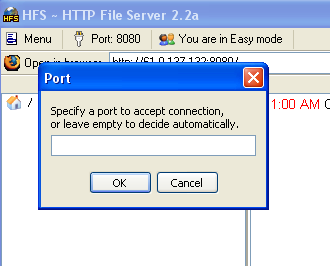
By default HFS uses port 80.if you your firewall is blocking port 80, set HFS to some other port( for example to 8025 or which ever is free, as a precaution keep it above 1024 which is used my operating system itself.)
hfs_port_no
  • To change the port number, click on Port Number menu and enter a new one.
  • Also, if you are behind a router or firewall, you may in some rare cases, need to set up port forwarding. For all the help required for visit portfrward
  • Port-forward can help you out to set up port forwarding.There you can choose the router type and choose a program you want to set up port forwarding for, which is in our case is HFS.

Step 3: Test HFS

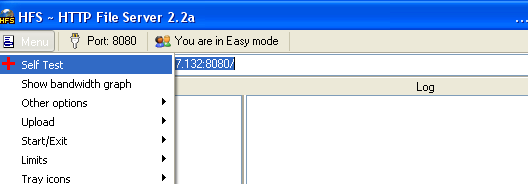
Now you need to test your settings before you start.Click the menu in HFS and choose self test.If the test completes successfully, your settings are correct and you are ready for next step, To point your web browser to your ip address.
hfs_self_test

Step 4: Register A domain

For setting up a web site, you need to first assign it a domain name.Domain name are  another name for a computer ip address. For this, you will need to a DNS service running on your computer which can be mapped to particular ip address.
  • Create a Create a new user at No-IP account.
  • Login to the site with the account you created.On the left-sidebar click on “Hosts/Redirects”
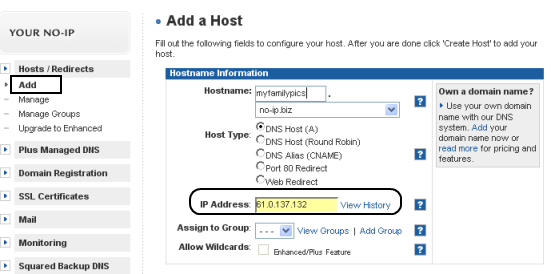
  • Click on Add.In the page that opens enter domain name of your choice e.g “myfamilypics” and It will create a sub-domain on its own server that will work on your ip.
addhost to home server
  • Your IP is recorded when you add the domain name.If you ISP is blocking port 80, you can choose a redirect given under same page.
  • Click on “Create host” and you are ready to roll.
  • Access the same from your own browser.You can add your file In HFS and access the same.
Trust me I have done it and it works.But i cant give the link of my url ( as it is hosted on my computer) here keeping in mind the security issues which I am not aware of. SO you also should share it among your friends.

Step 5. Install The dynamic update Client

Skip this step if yo have a static ip but ff you don’t, you will need a client software to take care of your changing ip address.

Step 6: Launch Your Website

You can now decide what page will appear when someone accesses your site, like the default page. To change the default page,
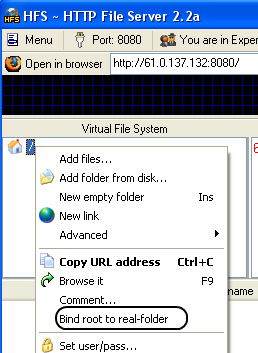
  • Open HFS and click on “You are in Easy Mode ” to turn it to advance mode.
  • Right click on little house icon on VFS and click on “Bind Root to Real Folder”.
  • Now you can add files and folder here which you want to make available in your website.
  • Next is when your site is ready send the address which you created in NO-IP or step 4 to all your friends.
  • You can even see what others are viewing in advanced mode of hfs
add_hfs.png
This helped me a lot to understand how things work  for example when my blog is hosted and how do my hosting service works.This was a Small example on low scale basis for you to try and for people who want to run there host on their own system.Do tell me your experience when you try it.I will be glad.

Hide 'User Accounts' from users

Go to Start/Run, and type:

GPEDIT.MSC

Open the path

User Config > Admin Templates > Control Panel

doubleclick "Hide specified Control Panel applets"

put a dot in 'enabled', then click 'Show"

click Add button,

type "nusrmgt.cpl" into the add box

How to Convert FAT to NTFS file system

To convert a FAT partition to NTFS, perform the following steps.

Click Start, click Programs, and then click Command Prompt.

In Windows XP, click Start, click Run, type cmd and then click OK.

At the command prompt, type CONVERT [driveletter]: /FS:NTFS.

Convert.exe will attempt to convert the partition to NTFS.

NOTE: Although the chance of corruption or data loss during the conversion from FAT to NTFS is minimal, it is best to perform a full backup of the data on the drive that it is to be converted prior to executing the convert command. It is also recommended to verify the integrity of the backup before proceeding, as well as to run RDISK and update the emergency repair disk (ERD).

How to use Windows Update Properly

If you want to save your files to your hard drive, so after a format you dont have to download them all again, here's How:

- Logon to Windows Update

- Choose Windows Update Catalogue (left hand pane)

- Choose Find updates for Microsoft Windows operating systems (right hand pane)

- Choose your version and language then Search

- Choose one the following:

- Critical Updates and Service Packs
- Service Packs and Recommended Downloads
- Multi-Language Features (0)


- Once chosen simply click on what you want to download and then back at the top click Review Download Basket

- You are taken to the next page where at the top you can specify where the downloads are to be saved.

- Click Download now. Each patch will make a directory under the root of the folder you saved them to.
Once finished you need to go to where you saved the file (s) to and then simply install all your patches.

Remove the Recycle Bin from the Desktop

If you don't use the Recycle Bin to store deleted files , you can get rid of its desktop icon all together.

Run Regedit and go to:


HKEY_LOCAL_MACHINE/SOFTWARE/Microsoft/Windows/CurrentVersion/explorer/Desktop/NameSpace


Click on the "Recycle Bin" string in the right hand pane. Hit Del, click OK.

Set Processes Priority

Follow this tip to increase the priority of active processes, this will result in prioritisation of processes using the CPU.

CTRL-SHIFT-ESC

1.Go to the second tab called Processes, right click on one of the active processes, you will see the Set Priority option


2.For example, your Run your CDwriter program , set the priority higher, and guess what, no crashed CD’s

How to edit Host File Windows 7


The host file in windows is a file that maps host names to IP Address. This works much like a simple DNS, however only one Host Name can go to one IP Address. This can be useful in many situations, for example if you are setting up a small office and don’t have the resources for a DNS you could set-up a host file to resolve internal Host Names for you.
Back in the days of Windows XP and NT all you had to do was open you host file and edit the data. But when windows Vista and 7 came along things became a bit more complicated as you have to open as administrator, so what if your not logged in as an administrator?
Well you first need to open Notepad as an administrator, to do this find notepad on your start bar, then right click, Open as Administrator:
Right Click, Run As Admin
You will then be asked if you “Want the following program to make changes to the computer“, click yes. Now this will load Notepad with full administrator rights, allowing it to open system files. You now need to click File>Open then navigate to C:\Windows\System32\drivers\etc\hosts:
The Host file Opened in Notepad With Admin rights

Now you will be able to edit your host file. You should leave anything already in your host file as it is, unless it is obliviously linked to a mallware. To add an entry you first need to enter the IP Address and then the host name, so on my network I have an Intranet server running on the address 192.168.0.101, so I type this address into the host file, then press TAB then type the host name. Now when I want to see my Intranet server I only need to type in companyweb, much easier to remember then 192.168.0.101. One you have finised editing the host file just click file>save then close notepad to finish.

Twitter---Track Your Computer Activity

There is no doubt that twitter is best social media service. More than that there is one more unique thing you can do with twitter and that is to track you computer when you are away.

track computer

Weird things can happen anytime to your computer when you are away from it. Especially when your friends, brother, sister or any other family member who use your computers. They may use an important applications. So, here is interesting thing that you can do with your computer when you are away from it.

At this point you need to track your computer and check out what are happening to your computer. Yes, track your computer with two application TweetMyApps and TweetMyPC. Just create a new twitter account and make both application tweets for this new account automatically. Both application runs on system tray. You can do more tweak with both application. You can hide them from system tray using another cool tools called TrayIt. Doing this will show you are enough clever to track any activities of your friends and families.

Now the application start tweeting your computer usage along with the time. If you are unsure about any tweeted command then you can send a special tweet which lets TweetMyPC to take screenshot of your desktop. You can also shut down or lock your PC by sending their respective commands, thus having complete control over your system.

Using both TweetMyApps and TweetMyPC together can give you full control over your computer from virtually anywhere.

Enjoy!

ip address

An IP address always consists of 4 numbers separated by periods, with the numbers having a possible range of 0 through 255. An example of how an IP address appears is: 192.168.1.10
This representation of an IP address is called decimal notation and is what is generally used by humans to refer to an IP address for readability purposes. With the ranges for each number being between 0 and 255 there are a total 4,294,967,296 possible IP addresses.
Out of these addresses there are 3 special ranged that are reserved for special purposes. The first is the 0.0.0.0 address and refers to the default network and the 255.255.255.255 address which is called the broadcast address. These addresses are used for routing, which will not be covered in this tutorial. The third address, 127.0.0.1, is the loopback address, and refers to your machine. Whenever you see, 127.0.0.1, you are actually referring to your own machine. That means if you clicked on this link, http://127.0.0.1, you are actually trying to connect to your own computer, and unless you have a web server running, you will get a connection error.

There are some guidelines to to how IP address can appear, though. The four numbers must be between 0 and 255, and the IP address of 0.0.0.0 and 255.255.255.255 are reserved, and are not considered usable IP addresses. IP addresses must be unique for each computer connected to a network. That means that if you have two computers on your network, each must have a different IP address to be able to communicate with each other. If by accident the same IP address is assigned to two computers, then those computers would have what is called an "IP Conflict" and not be able to communicate with each other.
IP address classes
These IP addresses can further be broken down into classes. These classes are A, B, C, D, E and their possible ranges can be seen in Figure 2 below.
Class Start address Finish address
A 0.0.0.0 126.255.255.255
B 128.0.0.0 191.255.255.255
C 192.0.0.0 223.255.255.255
D 224.0.0.0 239.255.255.255
E 240.0.0.0 255.255.255.255
Figure 2. IP address Classes
If you look at the table you may notice something strange. The range of IP address from Class A to Class B skips the 127.0.0.0-127.255.255.255 range. That is because this range is reserved for the special addresses called Loopback addresses that have already been discussed above.
The rest of classes are allocated to companies and organizations based upon the amount of IP addresses that they may need. Listed below are descriptions of the IP classes and the organizations that will typically receive that type of allocation.
Default Network: The special network 0.0.0.0 is generally used for routing.
Class A: From the table above you see that there are 126 class A networks. These networks consist of 16,777,214 possible IP addresses that can be assigned to devices and computers. This type of allocation is generally given to very large networks such as multi-national companies.
Loopback: This is the special 127.0.0.0 network that is reserved as a loopback to your own computer. These addresses are used for testing and debugging of your programs or hardware.
Class B: This class consists of 16,384 individual networks, each allocation consisting of 65,534 possible IP addresses. These blocks are generally allocated to Internet Service Providers and large networks, like a college or major hospital.
Class C: There is a total of 2,097,152 Class C networks available, with each network consisting of 255 individual IP addresses. This type of class is generally given to small to mid-sized companies.
Class D: The IP addresses in this class are reserved for a service called Multicast.
Class E: The IP addresses in this class are reserved for experimental use.
Broadcast: This is the special network of 255.255.255.255, and is used for broadcasting messages to the entire network that your computer resides on.
Private Addresses
There are also blocks of IP addresses that are set aside for internal private use for computers not directly connected to the Internet. These IP addresses are not supposed to be routed through the Internet, and most service providers will block the attempt to do so. These IP addresses are used for internal use by company or home networks that need to use TCP/IP but do not want to be directly visible on the Internet. These IP ranges are:
Class
Private Start Address
Private End Address
A
10.0.0.0
10.255.255.255
B
172.16.0.0
172.31.255.255
C
192.168.0.0
192.168.255.255
If you are on a home/office private network and want to use TCP/IP, you should assign your computers/devices IP addresses from one of these three ranges. That way your router/firewall would be the only device with a true IP address which makes your network more secure.
Common Problems and Resolutions
The most common problem people have is by accident assigning an IP address to a device on your network that is already assigned to another device. When this happens, the other computers will not know which device should get the information, and you can experience erratic behavior. On most operating systems and devices, if there are two devices on the local network that have the same IP address, it will generally give you a "IP Conflict" warning. If you see this warning, that means that the device giving the warning, detected another device on the network using the same address.
The best solution to avoid a problem like this is to use a service called DHCP that almost all home routers provide. DHCP, or Dynamic Host Configuration Protocol, is a service that assigns addresses to devices and computers. You tell the DHCP server what range of IP addresses you would like it to assign, and then the DHCP server takes the responsibility of assigning those IP addresses to the various devices and keeping track so those IP addresses are assigned only once.